Display options and button behavior
Where Download Buttons Appear
Free Downloads for WooCommerce gives you complete control over how download buttons and links appear on your site. This guide covers all the display options available to customize the user experience.
Download buttons can appear in several locations on your WooCommerce store:
Product Pages
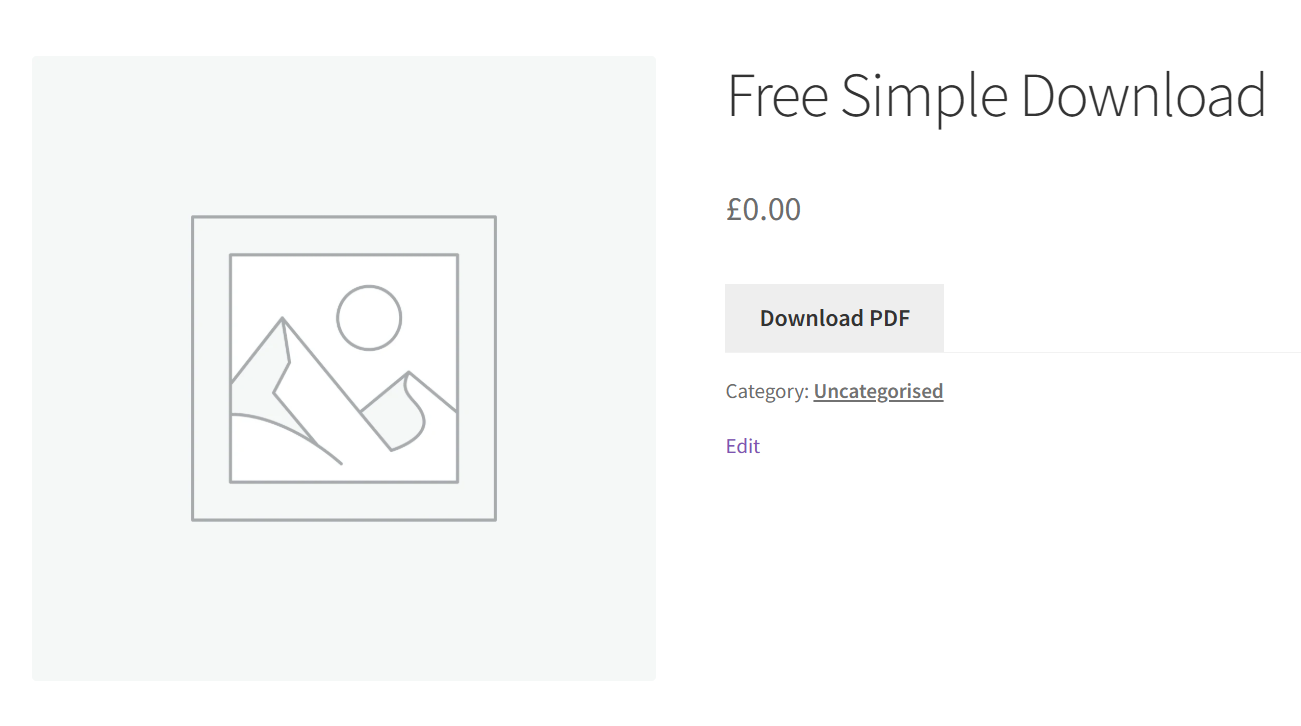
By default, download buttons replace the "Add to Cart" button on single product pages. This is where customers will see the full download interface with all available options.
Shop and Archive Pages
You can choose whether downloads are available directly from shop pages, category pages, and other product listing pages.
Options:
- Read More button (default): Shows a "Read More" button that takes customers to the product page
- Direct download: Allows customers to download directly from listing pages
To enable direct downloads from shop pages:
- Go to WP Enhanced > Free Download Woo
- Click General in the sidebar
- Check Allow download on shop / archive pages
- Save changes
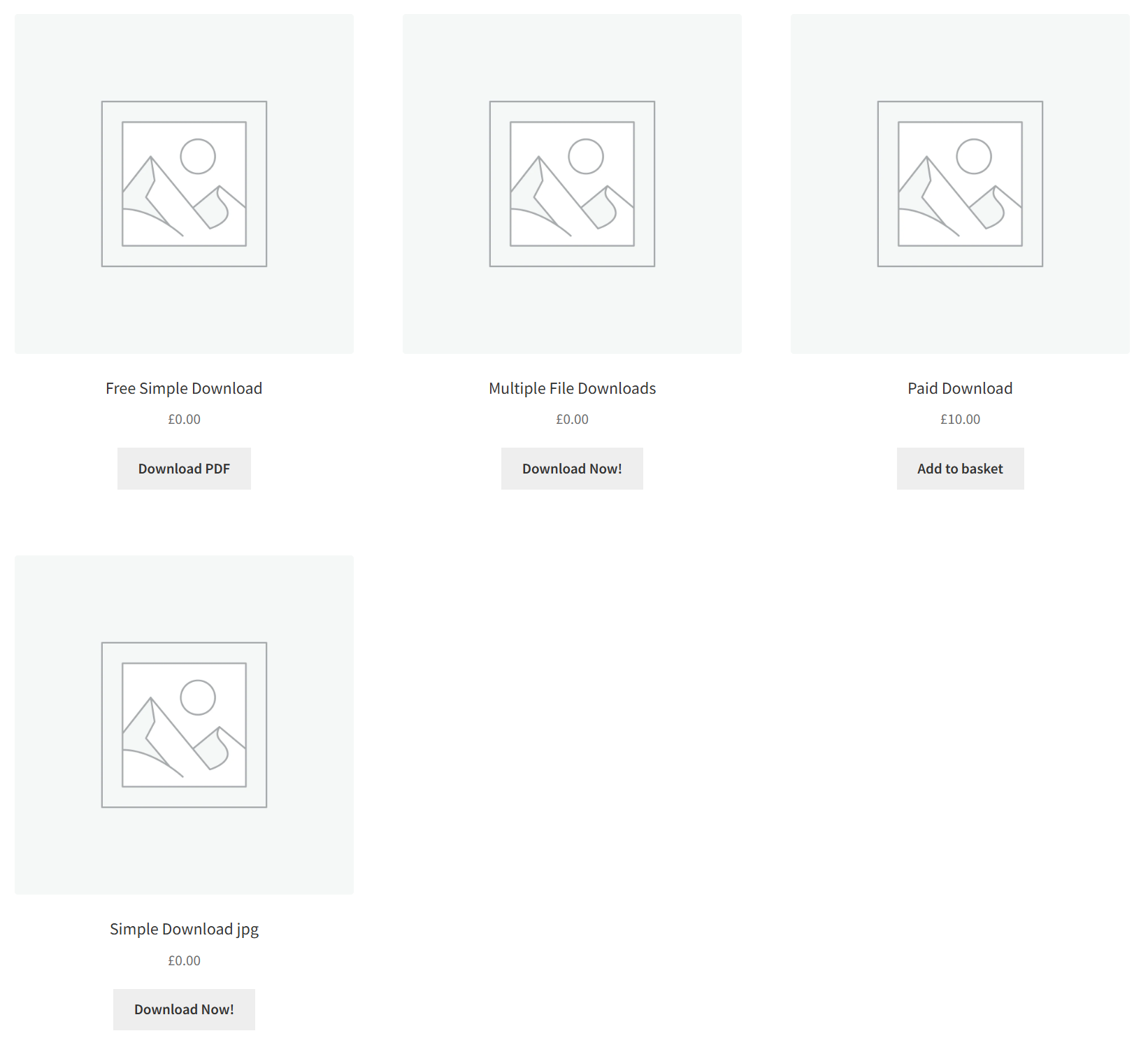
For products with multiple files, the shop page will always show a "Read More" button to avoid cluttering the listing page, even if direct downloads are enabled.
Customizing Button Text
You can customize the text that appears on download buttons in different contexts.
Read More Text (Shop Pages)
This is the text shown on shop and archive pages when direct downloads are disabled.
Default: "Read More"
To customize:
- Go to WP Enhanced > Free Download Woo, then click General in the sidebar
- Find Read More text
- Enter your custom text (e.g., "View Details", "See Download", "Get Free")
- Save changes
If you enable direct downloads on shop pages, leave this field blank. The button will automatically say "Download" for single files or "Read More" for multiple files.
Single File Button Text
Customize the text for products with a single downloadable file.
Default: "Download Now"
To customize:
- Go to WP Enhanced > Free Download Woo, then click Single Files in the sidebar
- Find Button text
- Enter your custom text
- Save changes
Multiple Files Button Text
For products with multiple files, when using the "Download All" button option.
Default: "Download All (.ZIP)"
To customize:
- Go to WP Enhanced > Free Download Woo, then click Multiple Files in the sidebar
- Find Button text
- Enter your custom text
- Save changes
Customizing Button Appearance
You can style download buttons to match your theme using CSS classes and inline styles.
Button Classes
Add custom CSS classes to download buttons for styling with your theme's stylesheet.
Default classes: somdn-download-button single_add_to_cart_button button
These default classes ensure buttons automatically match most WordPress themes. To add additional classes:
- Go to WP Enhanced > Free Download Woo, then click General in the sidebar
- Find Button classes
- Add your custom classes separated by spaces
- Example:
my-custom-button primary-button - Save changes
The button will have both the default classes and your custom classes.
Button CSS
Apply inline CSS styles directly to download buttons.
- Go to WP Enhanced > Free Download Woo, then click General in the sidebar
- Find Button CSS
- Add your CSS properties (without selectors)
- Example:
background-color: #ff6600; color: white; padding: 15px 30px; - Save changes
Inline CSS overrides theme styles. Use sparingly and prefer CSS classes when possible for better maintainability.
Link Classes
For download links (used in multiple file displays and when link display method is selected).
Default class: somdn-download-link
To add custom classes:
- Go to WP Enhanced > Free Download Woo, then click General in the sidebar
- Find Link classes
- Add your custom classes separated by spaces
- Save changes
Link CSS
Apply inline CSS styles to download links.
- Go to WP Enhanced > Free Download Woo, then click General in the sidebar
- Find Link CSS
- Add your CSS properties
- Example:
font-size: 16px; text-decoration: underline; - Save changes
Archive Page Behavior
Control how free downloads appear on shop pages, category pages, and other product listings.
Direct Download vs Read More
Read More (Default):
- Shows a button that links to the product page
- Keeps shop pages clean and uncluttered
- Recommended for most sites
Direct Download:
- Allows immediate downloads from listing pages
- Only works for single-file products
- Multiple-file products still show "Read More"
Customizing Archive Display
The archive display is automatically optimized:
- Single files: Shows download button (if direct download enabled) or "Read More"
- Multiple files: Always shows "Read More" to avoid complexity
- PDF files: Respects PDF Viewer settings
Product Sorting Options
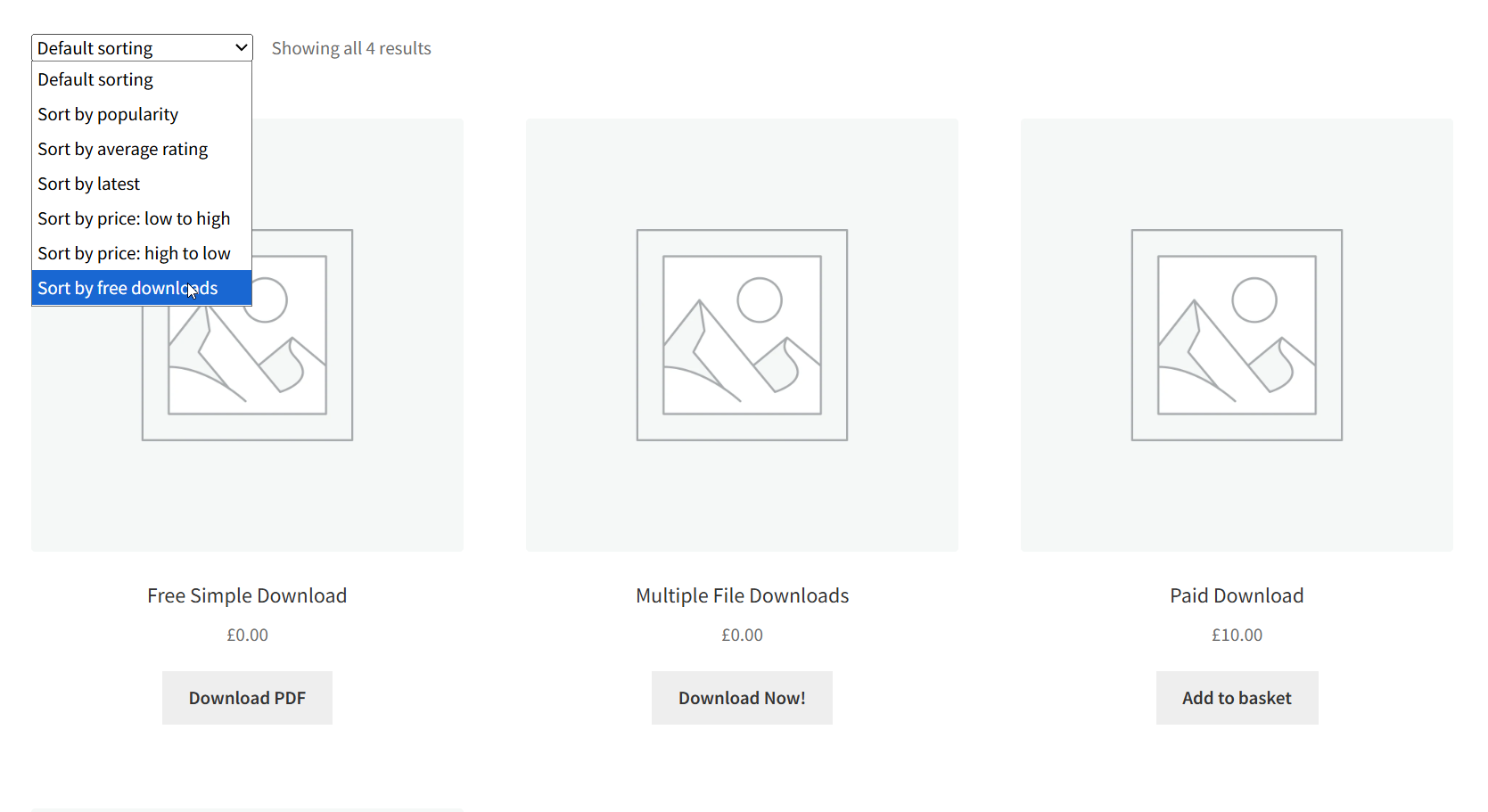
Free Downloads for WooCommerce adds a new sorting option to WooCommerce shop pages: Sort by download count.
This allows customers to see your most popular free downloads first.
Enable Download Count Sorting
- Go to WP Enhanced > Free Download Woo, then click General in the sidebar
- Find Product Sorting
- Check Enable sorting by free download count
- Save changes
Once enabled, customers will see "Sort by popularity (downloads)" in the shop page sorting dropdown.
Download counts are tracked automatically. The count increases each time a file is downloaded, even in the free edition (Pro edition offers more detailed tracking).
Display Method Options
Different display methods are available depending on whether a product has one or multiple files.
Single File Display
For products with one downloadable file:
- Button (default): Shows a download button
- Link: Shows the filename as a clickable link
Configure in Settings > Single Files > Display method
Multiple File Display
For products with multiple files, you have several options:
- Links Only (default): Individual links for each file
- Button Only: Single button to download all as ZIP
- Button + Checkboxes: Let users select which files to include in ZIP
- Button + Links: Both individual links and download all button
- Button + Filenames: List of filenames with download all button
See Multiple File Downloads for detailed information on each option.
Styling Examples
Example 1: Bold Primary Button
/* Add to Button CSS field */
background-color: #0073aa;
color: white;
font-weight: bold;
padding: 12px 24px;
border-radius: 4px;
Example 2: Outline Button
/* Add to Button CSS field */
background-color: transparent;
color: #0073aa;
border: 2px solid #0073aa;
padding: 10px 20px;
Example 3: Custom Link Style
/* Add to Link CSS field */
color: #d63638;
font-weight: 600;
text-decoration: none;
border-bottom: 2px solid #d63638;
Best Practices
Button Text
- Keep it short: "Download Now" is better than "Click Here to Download This File"
- Be clear: Users should know what happens when they click
- Match your brand: Use language consistent with your site's tone
Styling
- Match your theme: Use your theme's button classes when possible
- Test on mobile: Ensure buttons are easily tappable on small screens
- Consider accessibility: Maintain good color contrast for readability
Archive Pages
- Use Read More for complex products: If you have products with many files, keep archive pages simple
- Enable direct download for simple catalogs: If all products are single files, direct download works well
- Test the user experience: View your shop page as a customer would
Troubleshooting Display Issues
Button Not Showing
If the download button doesn't appear:
- Verify the product is free (price = 0)
- Check the product is marked as Downloadable and Virtual
- Ensure at least one file is attached
- Clear your cache (browser and any caching plugins)
Button Looks Wrong
If the button doesn't match your theme:
- Check your theme's button classes
- Add those classes in Button classes setting
- Use your browser's inspector to see what CSS is being applied
- Add custom CSS if needed
Archive Page Issues
If downloads aren't working on shop pages:
- Verify Allow download on shop / archive pages is enabled
- Check that it's a single-file product (multiple files always show "Read More")
- Clear your cache
What's Next
- Single File Downloads - Configure single file display
- Multiple File Downloads - Configure multiple file display
- Settings Reference - Complete settings guide
- Template Customization - Advanced customization options