Multiple file downloads
How Multiple File Downloads Work
When a product has multiple downloadable files, Free Downloads for WooCommerce offers several display options to give customers flexibility in how they download files.
For products with 2 or more downloadable files, the plugin can:
- Show individual download links for each file
- Create a ZIP file containing all files
- Let customers select which files to include in a ZIP
- Combine multiple display methods
The ZIP creation happens automatically on-demand and files are cleaned up hourly to save server space.
Display Methods
Choose how multiple files are presented to customers.
Links Only (Default)
Shows individual download links for each file.
Advantages:
- Customers can choose which files to download
- No ZIP creation needed
- Fast and simple
- Good for small files
Best for:
- Products with 2-5 files
- When customers typically want specific files
- When files are small and quick to download
Configuration:
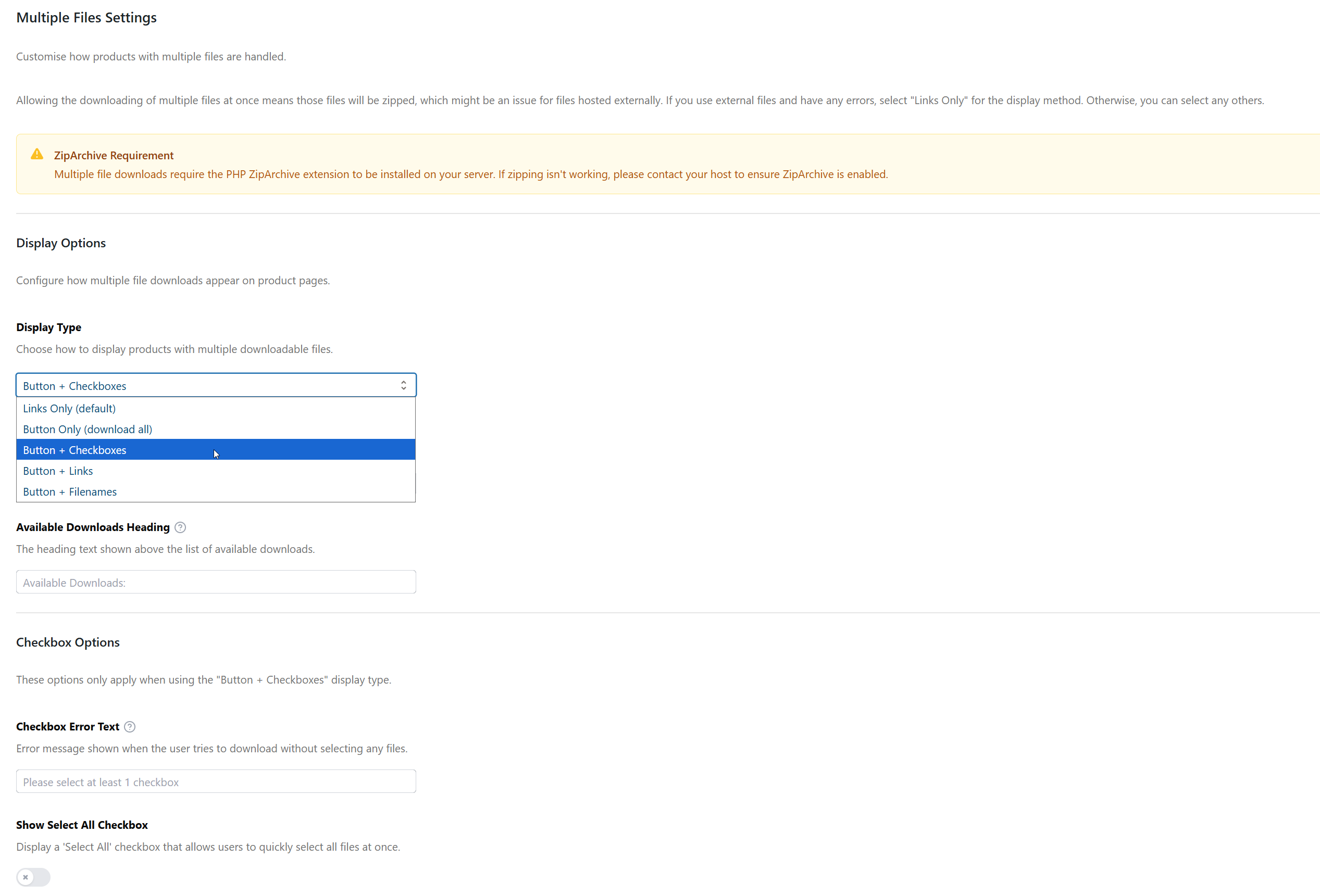
- Go to WP Enhanced > Free Download Woo, then click Multiple Files in the sidebar
- Set Display method to Links Only
- Save changes
Button Only
Shows a single "Download All (.ZIP)" button that creates a ZIP with all files.
Advantages:
- One-click download of everything
- Clean, simple interface
- Good for related files that should be downloaded together
Best for:
- Products with many files
- When customers typically want all files
- Course materials, resource packs, template bundles
Configuration:
- Go to WP Enhanced > Free Download Woo, then click Multiple Files in the sidebar
- Set Display method to Button Only
- Customize Button text (default: "Download All (.ZIP)")
- Save changes
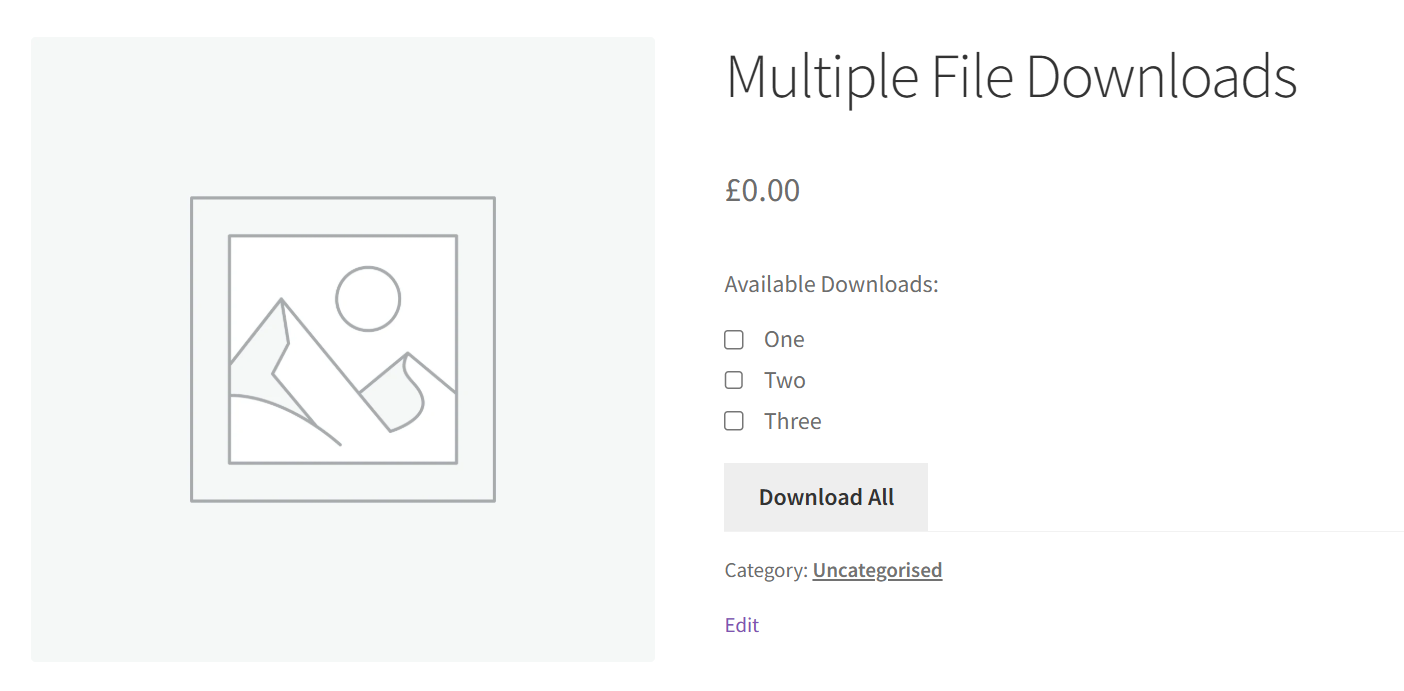
Button + Checkboxes
Shows checkboxes for each file with a button to download selected files as a ZIP.
Advantages:
- Maximum flexibility for customers
- Customers choose exactly what they want
- Reduces unnecessary downloads
Best for:
- Large file collections
- When customers may only want some files
- Resource libraries with optional content
Configuration:
- Go to WP Enhanced > Free Download Woo, then click Multiple Files in the sidebar
- Set Display method to Button + Checkboxes
- Customize Button text
- Save changes
How it works:
- All checkboxes are checked by default
- Customers uncheck files they don't want
- Clicking the button creates a ZIP with only selected files
- At least one file must be selected
Button + Links
Shows both individual download links AND a "Download All" button.
Advantages:
- Offers both options to customers
- Flexibility without complexity
- Good middle ground
Best for:
- Mixed use cases
- When some customers want everything, others want specific files
- Professional resource downloads
Configuration:
- Go to WP Enhanced > Free Download Woo, then click Multiple Files in the sidebar
- Set Display method to Button + Links
- Save changes
Button + Filenames
Shows a list of filenames with a "Download All" button.
Advantages:
- Shows what's included without clickable links
- Clean, informative display
- Encourages downloading everything
Best for:
- When you want to show contents but encourage bulk download
- Professional presentations
- Course material packages
Configuration:
- Go to WP Enhanced > Free Download Woo, then click Multiple Files in the sidebar
- Set Display method to Button + Filenames
- Save changes
Customizing Button Text
Customize the "Download All" button text to match your use case.
Examples of Custom Button Text
- "Download Complete Package (.ZIP)" - For comprehensive bundles
- "Get All Files (.ZIP)" - Simple and clear
- "Download Course Materials (.ZIP)" - For educational content
- "Get Template Bundle (.ZIP)" - For design resources
- "Download Selected Files (.ZIP)" - For checkbox method
How to Change Button Text
- Go to WP Enhanced > Free Download Woo, then click Multiple Files in the sidebar
- Find Button text field
- Enter your custom text
- Save changes
Include "(.ZIP)" in the button text so customers know they're downloading an archive file.
ZIP File Creation
When customers download multiple files, the plugin automatically creates a ZIP archive.
How ZIP Creation Works
- Customer clicks "Download All" or "Download Selected"
- Plugin validates all files are accessible
- ZIP file is created on-demand in
/wp-content/uploads/somdn-zips/ - ZIP is downloaded to customer's device
- ZIP files are automatically deleted after 1 hour
ZIP File Naming
ZIP files are automatically named based on the product:
Format: product-slug-timestamp.zip
Example: free-ebook-bundle-1699564832.zip
The timestamp ensures unique filenames and prevents caching issues.
ZIP File Cleanup
To prevent server storage issues:
- ZIP files are stored temporarily in
/wp-content/uploads/somdn-zips/ - Files older than 1 hour are automatically deleted
- Cleanup runs via WordPress cron (hourly)
- Manual cleanup: Delete files in the
somdn-zipsfolder
If your server has limited disk space and you offer large file downloads, monitor the somdn-zips folder to ensure cleanup is working properly.
File Limitations
File Size Considerations
Individual Files:
- No plugin-imposed limit
- Limited by your server's PHP settings
- Check
upload_max_filesizeandpost_max_sizein php.ini
ZIP Files:
- Total size limited by PHP memory limit
- Large ZIPs (>100MB) may timeout on some servers
- Consider server resources when offering large file collections
File Count
- No limit on number of files per product
- More files = longer ZIP creation time
- Consider user experience with many files (10+ files)
File Types
All file types are supported:
- Documents (PDF, DOC, DOCX)
- Images (JPG, PNG, GIF, SVG)
- Archives (ZIP, RAR, 7Z)
- Media (MP3, MP4, AVI)
- Code (PHP, JS, CSS)
- Any other file type
ZIP creation works best with files hosted on your server. External URLs may have limitations or fail to include in ZIP files.
Multiple Files on Shop Pages
On shop and archive pages, products with multiple files always show a "Read More" button, even if direct downloads are enabled for single files.
Why?
- Prevents cluttering shop pages with multiple links
- Maintains clean, consistent shop page layout
- Encourages customers to visit product page for details
Customize the text:
- Go to WP Enhanced > Free Download Woo, then click General in the sidebar
- Find Read More text field
- Enter custom text (e.g., "View Files", "See Downloads")
- Save changes
Styling Multiple File Downloads
Link Styling
Customize the appearance of individual file links:
- Go to WP Enhanced > Free Download Woo, then click General in the sidebar
- Find Link classes field
- Add custom CSS classes
- Or use Link CSS for inline styles
- Save changes
Default class: somdn-download-link
Button Styling
Customize the "Download All" button:
- Go to WP Enhanced > Free Download Woo, then click General in the sidebar
- Find Button classes field
- Add custom CSS classes
- Or use Button CSS for inline styles
- Save changes
Default classes: somdn-download-button single_add_to_cart_button button
Custom CSS Examples
Styled Links:
/* Add to Link CSS field */
color: #0073aa;
font-weight: 600;
text-decoration: none;
padding: 5px 10px;
border-left: 3px solid #0073aa;
display: inline-block;
margin: 5px 0;
Styled Button:
/* Add to Button CSS field */
background: linear-gradient(135deg, #667eea 0%, #764ba2 100%);
color: white;
padding: 15px 30px;
border-radius: 8px;
font-weight: bold;
Integration with Other Features
PDF Viewer
If any file is a PDF and PDF Viewer is enabled:
- Individual PDF links show "View PDF" option
- "Download All" button still creates ZIP with all files
- See PDF Viewer for details
Login Requirements
When login is required:
- All download links and buttons require login
- Logged-out users see login message
- See Login Requirements for details
WooCommerce Memberships
Restrict multiple file downloads to members:
- All files respect membership requirements
- Non-members see membership message
- See WooCommerce Memberships for details
Troubleshooting Multiple File Downloads
ZIP Creation Fails
If ZIP download doesn't work:
- ✅ Check PHP ZipArchive extension is installed
- ✅ Verify
/wp-content/uploads/is writable - ✅ Check PHP memory limit (increase if needed)
- ✅ Verify all file URLs are accessible
- ✅ Check for PHP errors in error log
Some Files Missing from ZIP
If not all files are included:
- ✅ Verify all file URLs are correct
- ✅ Check files exist on server
- ✅ Ensure files are readable (check permissions)
- ✅ Look for external URLs (may not work with ZIP)
- ✅ Check PHP error log for specific errors
ZIP Download is Slow
If ZIP creation takes too long:
- ✅ Check total file size (large files take time)
- ✅ Increase PHP max_execution_time
- ✅ Increase PHP memory_limit
- ✅ Consider hosting large files on CDN
- ✅ Reduce number of files per product
Checkboxes Not Working
If checkbox selection doesn't work:
- ✅ Check for JavaScript errors in browser console
- ✅ Verify jQuery is loaded
- ✅ Check for plugin conflicts
- ✅ Try disabling other plugins temporarily
- ✅ Clear browser cache
Best Practices
File Organization
- Group related files: Put similar files in the same product
- Logical naming: Use clear, descriptive filenames
- Consistent naming: Follow a naming convention across products
- Order matters: Files appear in the order you add them
Display Method Selection
- 2-3 files: Links Only works well
- 4-6 files: Button + Links offers flexibility
- 7+ files: Button Only or Button + Checkboxes
- Mixed sizes: Button + Checkboxes lets customers avoid large files
User Experience
- Describe contents: Use product description to explain what files are included
- Show file sizes: Mention if files are large
- Provide previews: Use product images to show what's inside
- Test downloads: Always test as a customer would
Performance
- Monitor disk space: Check the
somdn-zipsfolder regularly - Optimize file sizes: Compress files before uploading
- Consider CDN: For very large files, use a CDN
- Set appropriate limits: Don't offer too many large files in one product
What's Next
- Single File Downloads - Handle products with one file
- Display Options - Customize button appearance
- Settings Reference - Complete settings guide
- Template Customization - Advanced customization
- Troubleshooting - Common issues and solutions