Single file downloads
How Single File Downloads Work
Products with a single downloadable file are the simplest use case for Free Downloads for WooCommerce. This guide covers how single file downloads work and how to customize them.
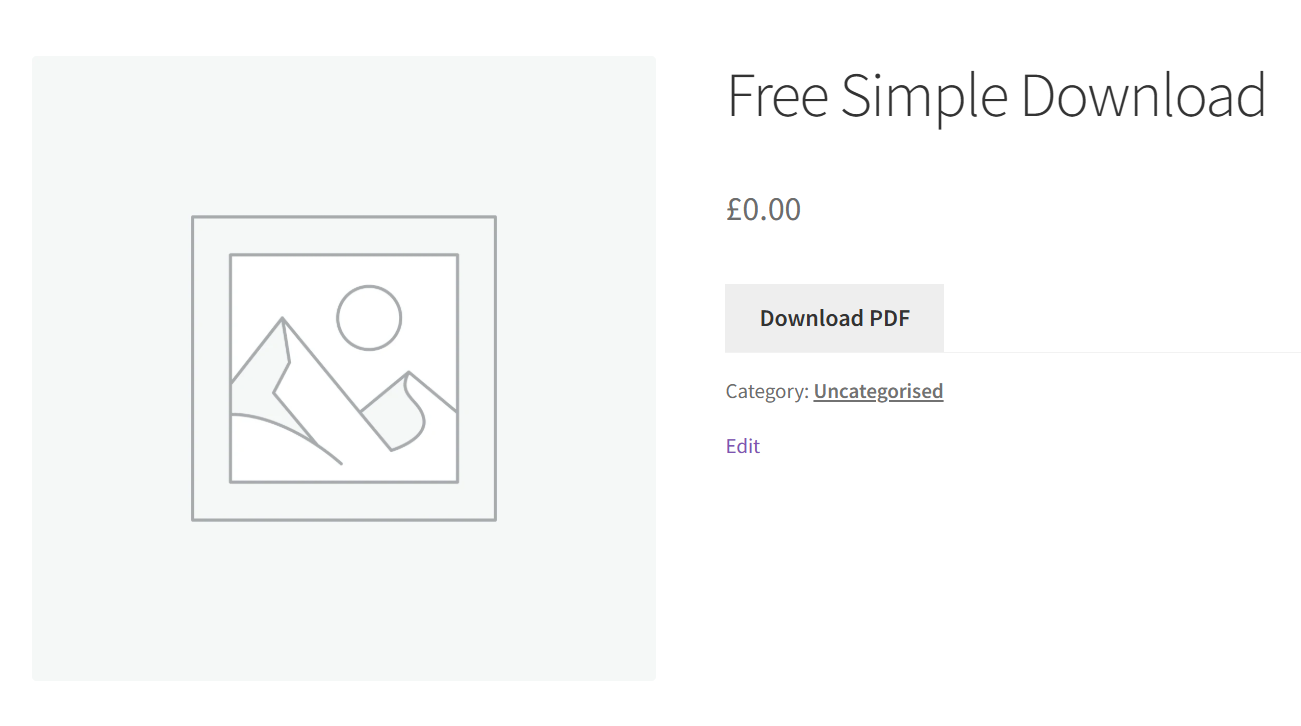
When a product has exactly one downloadable file, the plugin displays a single download button or link. Clicking it immediately downloads the file without any checkout process.
The Download Process
- Customer clicks the download button
- Plugin validates the product is free and downloadable
- Security checks are performed (nonces, permissions)
- File is served using WooCommerce's secure download method
- Download starts immediately in the browser
All of this happens in milliseconds, providing a seamless experience.
Display Methods
You can choose how single file downloads are displayed to customers.
Button Display (Default)
Shows a prominent button with customizable text.
Advantages:
- Clear call-to-action
- Matches standard WooCommerce buttons
- Easy to style with your theme
Configuration:
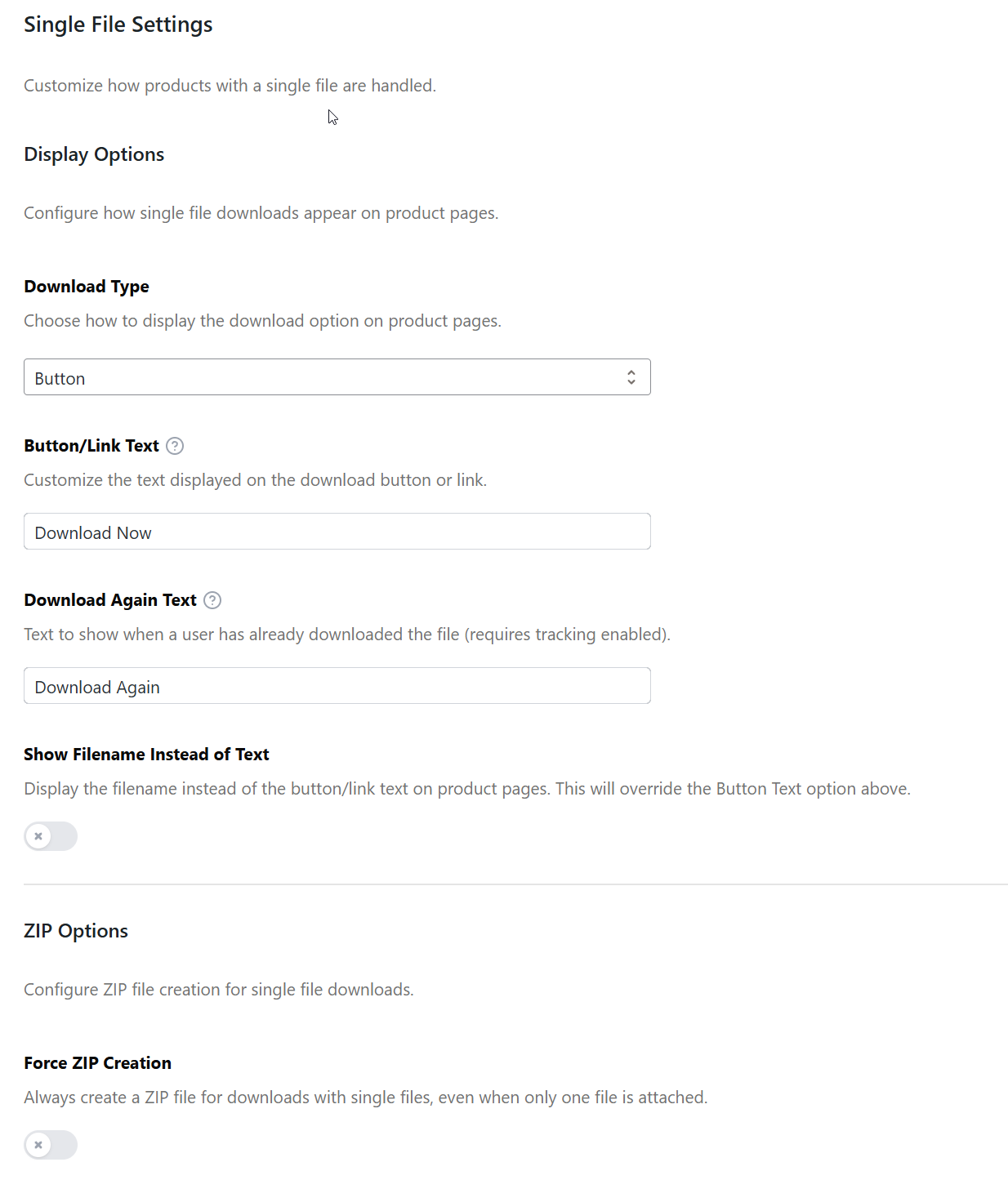
- Go to WP Enhanced > Free Download Woo
- Navigate to Single Files tab
- Set Display method to Button
- Customize Button text (default: "Download Now")
- Save changes
Link Display
Shows the filename as a clickable download link.
Advantages:
- More subtle, less intrusive
- Shows the actual filename
- Good for technical audiences
Configuration:
- Go to WP Enhanced > Free Download Woo
- Navigate to Single Files tab
- Set Display method to Link
- Save changes
The link display method shows the filename from your product's downloadable files section, so make sure your filenames are user-friendly.
Customizing Button Text
The default button text is "Download Now", but you can customize it to match your brand or use case.
Examples of Custom Button Text
- "Get Your Free eBook" - For digital books
- "Download PDF" - For document downloads
- "Get Template" - For design resources
- "Download Plugin" - For WordPress plugins
- "Access Now" - For gated content
How to Change Button Text
- Go to WP Enhanced > Free Download Woo, then click Single Files in the sidebar
- Find Button text field
- Enter your custom text
- Save changes
The text applies to all single-file products site-wide.
To use different button text for different products, you'll need to use template overrides. See Template Customization for details.
Styling Single File Buttons
You can style single file download buttons to match your theme.
Using CSS Classes
Add custom CSS classes to buttons:
- Go to WP Enhanced > Free Download Woo, then click General in the sidebar
- Find Button classes field
- Add your classes (space-separated)
- Example:
my-download-btn primary-btn large - Save changes
Default classes: somdn-download-button single_add_to_cart_button button
These default classes ensure buttons automatically match most WordPress themes.
Using Inline CSS
Apply inline styles directly:
- Go to WP Enhanced > Free Download Woo, then click General in the sidebar
- Find Button CSS field
- Add CSS properties (without selectors)
- Example:
background: #28a745; color: white; padding: 12px 24px; border-radius: 5px; - Save changes
Inline CSS overrides theme styles. Use CSS classes when possible for better maintainability.
Styling Examples
Bold Primary Button:
background-color: #0073aa;
color: white;
font-weight: bold;
padding: 12px 24px;
border-radius: 4px;
text-transform: uppercase;
Outline Button:
background-color: transparent;
color: #0073aa;
border: 2px solid #0073aa;
padding: 10px 20px;
border-radius: 4px;
Gradient Button:
background: linear-gradient(135deg, #667eea 0%, #764ba2 100%);
color: white;
padding: 15px 30px;
border-radius: 8px;
box-shadow: 0 4px 6px rgba(0,0,0,0.1);
Single File on Shop Pages
You can allow customers to download single files directly from shop and archive pages.
Enable Shop Page Downloads
- Go to WP Enhanced > Free Download Woo, then click General in the sidebar
- Check Allow download on shop / archive pages
- Save changes
When enabled:
- Single-file products show a download button on shop pages
- Multiple-file products still show "Read More" (to avoid complexity)
- Customers can download without visiting the product page
Customize Shop Page Text
If you disable direct downloads on shop pages, customize the "Read More" text:
- Go to WP Enhanced > Free Download Woo, then click General in the sidebar
- Find Read More text field
- Enter custom text (e.g., "View Details", "See Download")
- Save changes
Leave the "Read More text" field blank if you enable direct downloads. The button will automatically say "Download" for single files.
File Types and Compatibility
Single file downloads work with any file type:
- Documents: PDF, DOC, DOCX, TXT, RTF
- Images: JPG, PNG, GIF, SVG
- Archives: ZIP, RAR, 7Z, TAR
- Media: MP3, MP4, AVI, MOV
- Code: PHP, JS, CSS, HTML
- Design: PSD, AI, SKETCH, FIG
Browser Behavior
How files download depends on the browser and file type:
- Most files: Download immediately to the downloads folder
- PDFs: May open in browser (see PDF Viewer)
- Images: May open in browser instead of downloading
- Text files: May display in browser
To force download instead of display, see the Advanced section for the somdn_force_download filter.
Security and Validation
Single file downloads include several security measures:
Automatic Validation
The plugin automatically checks:
- ✅ Product is free (price = 0)
- ✅ Product is downloadable
- ✅ Product is virtual
- ✅ File exists and is accessible
- ✅ User has permission (if login required)
- ✅ Membership requirements (if applicable)
Nonce Verification
Each download button includes a security nonce that:
- Prevents CSRF attacks
- Expires after 24 hours
- Validates the request came from your site
WooCommerce Integration
Files are served using WooCommerce's built-in download handler, which:
- Validates file paths
- Prevents directory traversal attacks
- Logs download attempts
- Respects WooCommerce download permissions
Login Requirements
You can require users to log in before downloading single files.
Enable Login Requirement
- Go to WP Enhanced > Free Download Woo, then click General in the sidebar
- Check Require login to download
- Save changes
When enabled:
- Logged-out users see a message: "You must be logged in to download this file"
- A login link is provided
- After login, users can download immediately
See Login Requirements for detailed information.
Integration with Other Features
Single file downloads work seamlessly with other plugin features:
PDF Viewer
If the file is a PDF and PDF Viewer is enabled:
- A "View PDF" button appears alongside the download button
- Users can preview the PDF before downloading
- See PDF Viewer for details
WooCommerce Memberships
Restrict single file downloads to members:
- Set membership requirements on the product
- Non-members see a message about membership requirement
- See WooCommerce Memberships for details
Quick View
Single file downloads work in Quick View popups:
- Download button appears in the Quick View modal
- Files download without leaving the shop page
- See Quick View for details
Troubleshooting Single File Downloads
Button Not Appearing
If the download button doesn't show:
- ✅ Verify product price is exactly 0
- ✅ Check Downloadable checkbox is enabled
- ✅ Check Virtual checkbox is enabled
- ✅ Ensure at least one file is added
- ✅ Clear browser and server cache
Download Not Working
If the button appears but clicking doesn't download:
- ✅ Check file URL is correct and accessible
- ✅ Verify file exists on the server
- ✅ Check file permissions (should be readable)
- ✅ Look for JavaScript errors in browser console
- ✅ Test in a different browser
- ✅ Check for plugin conflicts
File Opens Instead of Downloads
If files open in the browser instead of downloading:
- This is normal for PDFs, images, and text files
- Browsers decide whether to display or download based on file type
- To force download, use the
somdn_force_downloadfilter (see Advanced)
Wrong Filename
If the downloaded file has the wrong name:
- The filename comes from the File name field in the product's downloadable files section
- Edit the product and update the file name
- Clear cache and test again
Best Practices
File Names
- Use descriptive names: "Getting-Started-Guide.pdf" not "file1.pdf"
- Avoid spaces: Use hyphens or underscores instead
- Include version numbers: "Plugin-v2.1.zip" helps users track versions
- Keep it short: Long filenames can cause issues on some systems
Button Text
- Be specific: "Download eBook" is better than "Download"
- Match the content: Use "Get Template" for templates, "Download Plugin" for plugins
- Keep it short: 2-3 words is ideal
- Use action verbs: "Download", "Get", "Access"
User Experience
- Test the download: Always test downloads as a customer would
- Check file size: Large files may need a warning
- Consider mobile: Ensure downloads work on mobile devices
- Provide context: Use product descriptions to explain what's being downloaded
What's Next
- Display Options - Customize button appearance
- Multiple File Downloads - Handle products with multiple files
- Login Requirements - Require login before download
- PDF Viewer - Preview PDFs before downloading
- Template Customization - Advanced customization